Great API documentation is more than just a static reference. Developers want clear guides, accurate details, and fast answers to their questions. ReadMe's AI tools make your job easier so that you can spend time on what matters most - building APIs that developers love to build with.
This guide walks through how you can use ReadMe’s AI features to write, review, and improve your documentation so it’s easier for your developers to get started with your API.
Write and Edit Documentation
Meet Agent Owlbert, Your AI Writing Assistant
Agent Owlbert reviews your documentation, suggests edits for clarity, and flags inconsistencies. Because it’s connected to your documentation and knowledge sources, Owlbert also helps keep everything in sync as your API evolves.
Tip: Use Owlbert as a second set of eyes when writing new content. It’s especially helpful for keeping your endpoint descriptions and guides aligned.
Review and Improve Your Docs
Polish Your API Docs with Built-In Linting
The Linter helps keep your documentation clear and consistent. It automatically checks for issues like missing details, unclear phrasing, or formatting problems. Instead of reviewing every page by hand, you’ll get quick feedback that makes your docs easier to follow. This is especially helpful when multiple people are contributing.
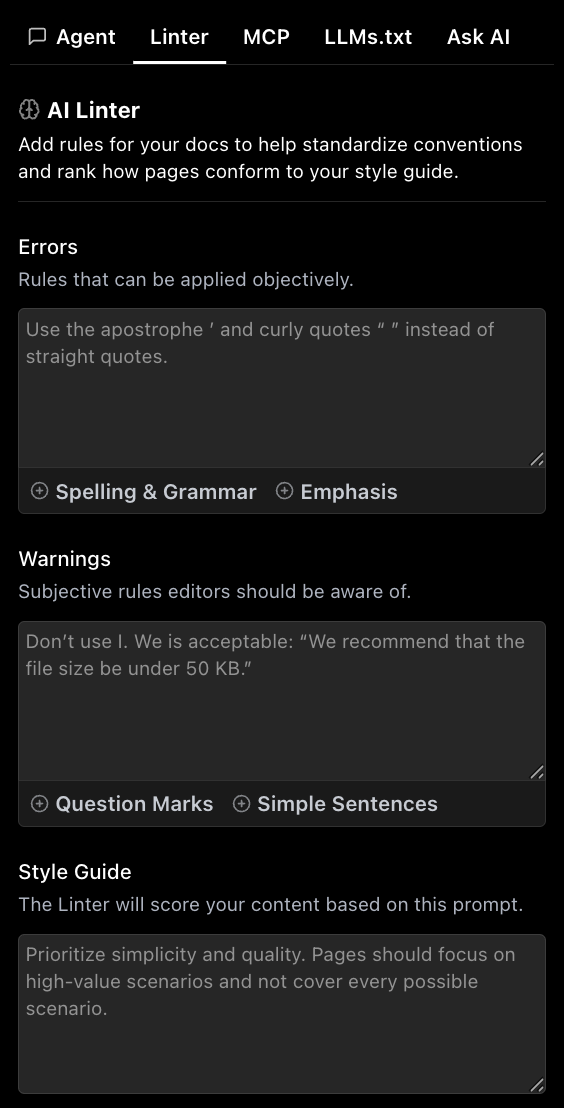
Tip: The Linter works best when you use it regularly while updating your docs. Catching small issues early makes your guides and API reference more easier to navigate.
Help Your Developers Use Your Docs More Easily
Add AI Search to Your Docs
Once you’ve published your API reference and guides in ReadMe, you can enable an Ask AI dropdown menu to your docs. This gives developers the option to ask AI tools, like ChatGPT or Claude, questions about your docs. Instead of scrolling through pages to find what they need, your developers can ask questions in conversational language and receive accurate, contextual answers pulled directly from your guides and API reference.
Tip: The clearer your guides and references, the more helpful the answers will be.
Connect Your Docs to AI with LLMs.txt
You can also generate an llms.txt file of your docs, which is a file that tells large language models like ChatGPT or Claude how to find and use your docs. By making your documentation discoverable to AI tools, you help developers get accurate, up-to-date answers when they ask questions in natural language.
Tip: The better your informational architecture and structure, the more likely AI tools will surface the right information for your developers.
Generate Your MCP Server
Finally, generate an MCP (Model Context Protocol) server from your docs. This feature automatically creates a way for AI tools to access your documentation. With MCP servers, developers can stay in their AI-powered code editor and still rely on your documentation.
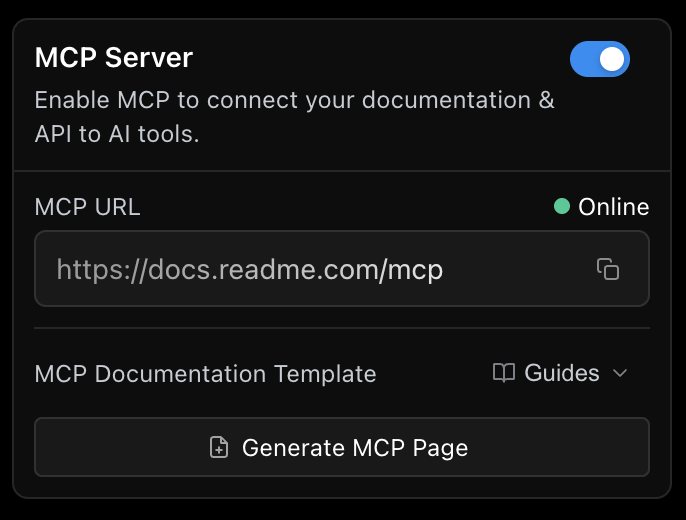
Tip: MCP server generation runs in the background and you don’t need to configure anything manually. Just keep your docs updated in ReadMe, and the server stays in sync.
Bringing It All Together
With all of these built-in AI tools, your documentation becomes an evolving, interactive resource:
- Your writing stays clear and consistent.
- Developers can ask questions about your API, directly in your hub.
- AI assistants have access the latest version of your docs.
ReadMe’s AI tools work together to handle what AI does best so that you can spend more time on what you’re good at! Check out our AI Overview docs that walk through each feature so you could learn more about them and start building.
Need help getting started with ReadMe's AI features?