When developers connect an AI client to your MCP server, their agents can search your guides, inspect endpoints, and make API requests without opening your docs site. You still need to know which requests are arriving and whether they're working.
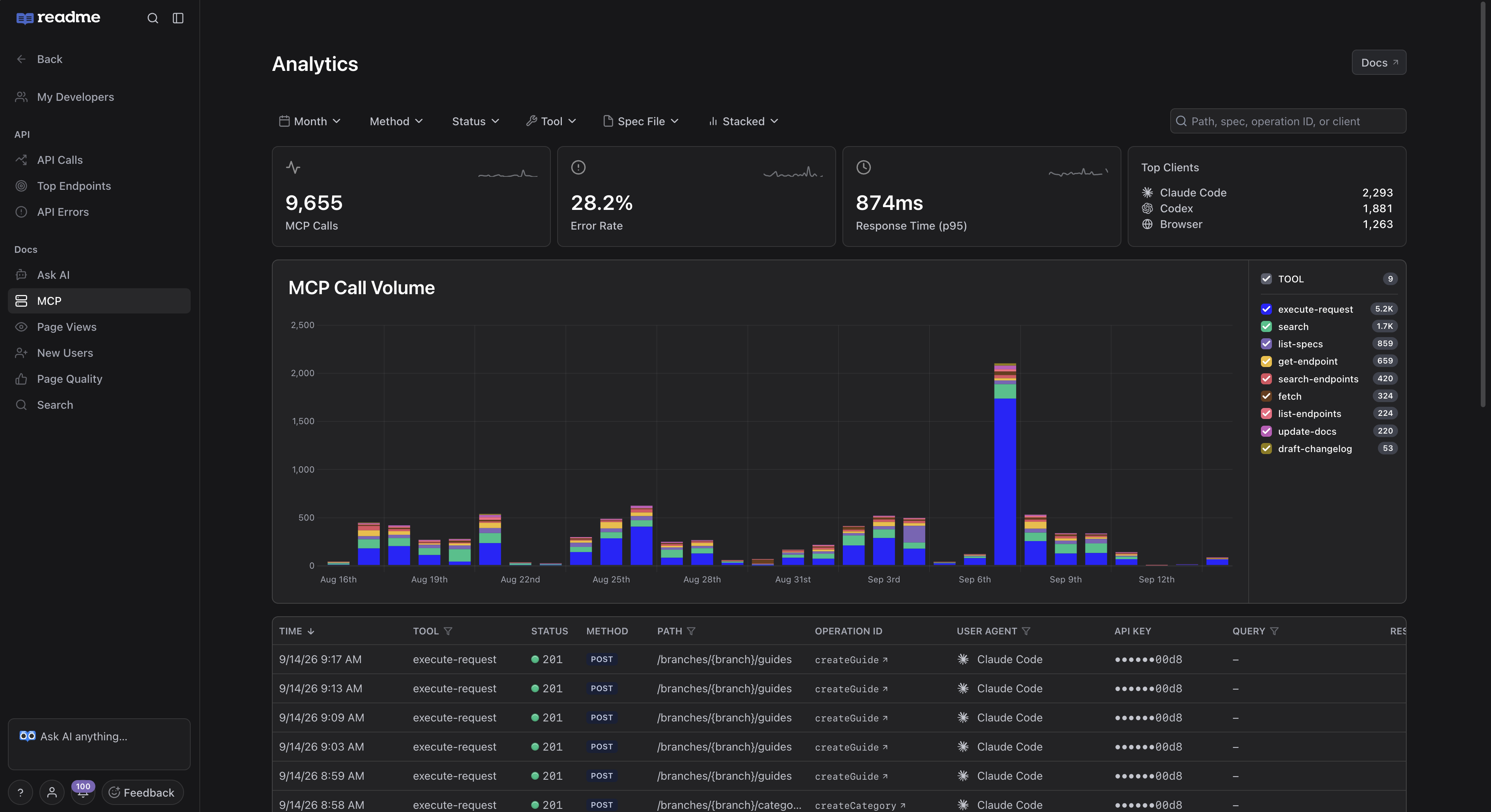
We're introducing MCP Metrics in ReadMe. It records calls to your project's MCP server, including the client, tool, status, and response time. You can use that data to decide which docs need work, which clients to test, and where to start debugging.
See which clients are making calls
Top Clients ranks clients such as Claude Code and Codex by call count. Use that list to choose which clients to include in compatibility testing. If most of your traffic comes from a particular client, make sure you've tried your common API workflows there.
When someone reports a problem, filter the User Agent column to focus on calls from their client. Then check which tools were called and what statuses they returned.
A single question can trigger several tool calls, and each gets its own row. The totals count calls, not developers or conversations.
See which tools and endpoints agents use
The call-volume chart groups daily traffic by tool. If usage spikes, select the tools you want to examine and check the individual calls in the table.
A search call includes the query an agent sent to your guides. Endpoint lookups show which parts of your API it inspected. For an execute-request call, you can see the operation the agent attempted, its HTTP status, and how long it took. Follow the operation ID to open the endpoint's API reference.
Custom tools appear alongside ReadMe's built-in tools under their configured names. Enter a custom tool's name in the Tool column's filter to review its calls.
Use search queries to improve your docs
Filter to search calls and set the Results column's maximum to 0. The Query column gives you the searches to try yourself.
Review the docs for those topics. If the answer is missing, you have a candidate for a new guide or example. If it's already documented, check whether the heading and opening paragraph use the terms appearing in those queries. A search returning no results is a reason to investigate how the content is found before deciding what to rewrite.
Find the calls that need attention
When the error rate climbs, filter by status and narrow the results by tool or API definition. Look for failures concentrated around one endpoint or client. The summary metrics update with your filters, so you can see how many calls match.
For slow calls, the response-time card shows p95: the time within which 95% of calls returned. Set a minimum duration in the table to find slower calls, then look for tools or endpoints that recur. Bring those operation IDs and timings into debugging.
After a fix, select the same tool or API definition and review comparable date ranges before and after the change. Clear status and response-time filters when comparing error rates and p95, so successful and fast calls are included too. Check call volume as well: fewer calls can mean fewer failures without a lower error rate.
Try MCP Metrics
MCP Metrics is available with the Ask AI Addon. Open Analytics > Docs > MCP in your ReadMe project to explore your traffic. For setup, filtering, and Enterprise group behavior, see the MCP Metrics guide.
If you haven't enabled your MCP server yet, open AI > MCP in your ReadMe project and turn on MCP Server. Share the server URL with your developers so they can connect their AI clients. Follow the MCP setup guide for connection and configuration details.