The way developers discover and integrate APIs has changed. AI coding assistants have become the primary interface between developers and the tools they build with. If your API documentation is not connected to those assistants, it is effectively invisible during the most important part of the development process.
ReadMe lets you generate an MCP server from your existing API documentation in three steps. This post walks through how it works, what you can build with it, and answers the questions we hear most. If you would rather see it in action, watch the full demo recording here!
What You Need to Know Before Setting Up an MCP Server
If you are evaluating MCP servers for your API documentation, you probably have at least one of these questions. Here are the most common ones, answered directly.
Do I actually need an MCP server? Yes. AI coding tools like Cursor, Windsurf, and Claude Desktop have become the primary environments where developers work. Without an MCP server, your docs are invisible to those tools. AI assistants fall back on training data, which goes stale fast and leads to hallucinated endpoints, deprecated methods, and integration bugs that are hard to trace.
Do I need to build one from scratch? No. ReadMe generates an MCP server automatically from your existing API spec. You toggle it on in the AI panel, and it is live. No custom infrastructure, no JSON-RPC implementation, no maintenance burden when your API changes.
How do I connect my AI tool to it? Take your MCP server URL (for example, https://your-project.readme.io/mcp) and paste it into your AI tool's config. ReadMe's What is MCP? page has a built-in config generator that produces ready-to-paste configs for Cursor, VS Code, Claude Desktop, Claude Code, Windsurf, ChatGPT, Gemini CLI, and Codex.
How does it handle large APIs without hitting context limits? ReadMe exposes a search layer rather than loading your entire spec at once. The AI queries for relevant endpoints, ReadMe returns the matching ones, and the AI decides which to call. This makes it practical even with thousands of endpoints.
Is the AI just reading my docs, or is it making live API calls? Both, and you control which. Read mode is for coding assistants that need to understand your API without touching it. Execute mode is for agents that take real action. You can restrict the MCP server to read-only at any time.
How do I control which endpoints the AI can access? You can enable or disable individual endpoints from the Enabled MCP Routes section in the AI panel. The AI will not see, call, or be confused by any disabled route.
How does authentication work? Your API key or bearer token gets passed in as a header when configuring the MCP server and proxied through to your endpoints on every request. Token expiry is a real consideration, so long-lived tokens are recommended. For private ReadMe projects, you also pass an x-readme-auth header.
Is MCP just a wrapper around my REST API? MCP does not replace REST, it sits in front of it. REST handles discrete operations. MCP orchestrates those operations for AI agents with stateful context across multiple steps, so the agent can query an endpoint, act on the result, and continue without losing context between steps.
How is this different from giving the AI my Swagger file? Pasting a full spec into a prompt hits context limits quickly. ReadMe's MCP server exposes a search layer so the AI finds what it needs without ingesting everything at once. It also lets the AI execute your APIs, not just read about them.
Can my customers use the MCP server? Yes. Once enabled, the MCP server is available to all end users of your public docs site. You can also click Generate MCP Page in the AI panel to auto-generate a documentation page with connection instructions for your users.
How do I track who is using my MCP server? If you have My Developers enabled, MCP metrics are already available there, including which tools were called and what searches were run.
What Is an MCP Server?
An MCP server (Model Context Protocol server) gives AI the ability to take real actions, not just answer questions.
Think about how most AI tools work today. You ask a question, it gives you an answer. That's it. It can't add a task to your board, send a Slack message, or call one of your APIs. MCP servers solve that problem.
By following the Model Context Protocol standard, MCP servers give AI a consistent way to execute actions on your behalf. That might mean updating a CRM field, editing docs, or interacting directly with your product's APIs. It's the difference between an AI that talks and one that actually does things.
How ReadMe Generates an MCP Server from Your API Docs
ReadMe is an API documentation platform, which means we already have everything we need to know about how your APIs work. So we can take your existing API spec and expose it though the MCP server without context bloat automatically. We also act like a proxy layer. If an API request comes through the MCP server, we proxy it directly to your endpoints.
Enabling it takes three steps:
- Open your project in ReadMe and enter Edit Mode
- Click the ✨ AI icon in the top-right corner to open the AI panel
- Select MCP and toggle MCP Server on
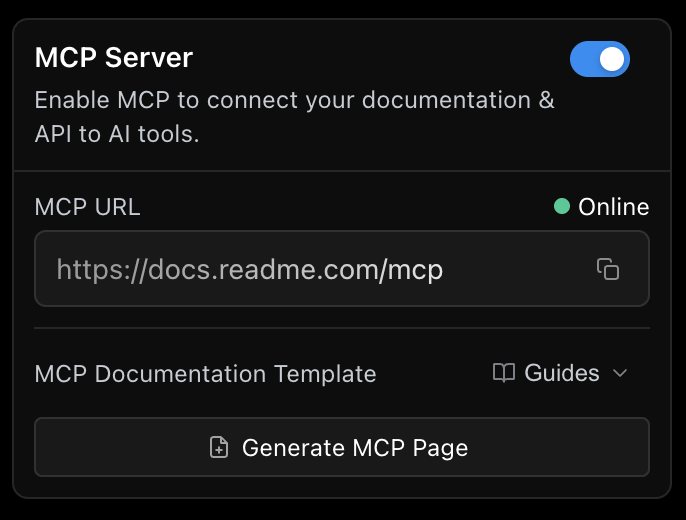
Your MCP server is live, and you can share the URL with your customers right away. Once enabled, click Generate MCP Page in the AI panel. This creates a ready-to-publish doc in your Guides that shows your users how to connect their AI tools, pre-filled with your project's MCP URL and step-by-step instructions for Cursor, Claude Desktop, VS Code, and more.
Your MCP Server URL
The URL structure depends on your setup:
- Standard projects:
https://your-project.readme.io/mcp - Enterprise with a custom domain: the MCP server lives at the root of that domain, so
https://your-custom-domain.com/mcp - Enterprise with multiple projects: you also get a root MCP server that merges all MCP-enabled projects in your organization into a single endpoint, useful when your users work across multiple products:
https://your-enterprise.readme.io/mcp
You can also append URL parameters to customize behavior. The branch parameter lets you connect to a specific version branch. The project parameter, available on Enterprise, limits the root MCP server to a single project. You can combine them:
Why We Don't Just Dump Your Entire Spec Into the AI
A question that comes up a lot is how the MCP server handles large API specs. The short answer: we don't send everything at once. If you dump your entire API spec into an AI prompt, you'll hit context window limits quickly, especially if you have hundreds or thousands of endpoints. Our approach is to expose a search layer instead. The AI sends us a query to find endpoints that match what it's trying to do, we send back the relevant ones, and then it figures out which one to call. It can also execute those APIs directly, not just search through them.
Read Mode vs. Execute Mode
Read mode is for use cases like writing code in Cursor or another AI coding assistant. The AI reads your docs, understands your endpoints, and helps write client wrappers or figure out parameters without making any live calls.
Execute mode is for agents. The AI doesn't just read your APIs, it calls them and takes action. If you ever want to lock things down to read-only, you can turn off execute-request in the AI panel. The agent will only be able to list your endpoints and introspect your OpenAPI file without making any actual requests.
Controlling Which Endpoints Are Exposed
You are in full control of what the AI can see. Not every endpoint needs to be visible to an agent. A health check endpoint, for example, is not useful to surface. You can disable it from the AI panel under Enabled MCP Routes, and the AI won't see it, call it, or get confused by it. Enable and disable as many routes as you want, however you see fit.
The Demo: A Task Tracker Built with ReadMe MCP
To make this concrete, I walked through a task tracker app I built, complete with users, a team, tasks with due dates, and ReadMe documentation already set up. After flipping the MCP toggle, I connected it to Claude as the MCP client and started giving it natural language prompts.
Here is what it handled without any hand-holding:
Status reporting. "Give me a status report across all projects, and for any project less than 50% complete, list the blocked tasks and show me any comments." The first thing it did was search to figure out which endpoints to use. Then it started executing them, getting projects, getting tasks, working through all the available APIs to return a clean report.
Writing data. "Add a backend dev to the team." It figured out it needed to call the POST users endpoint, executed it, and the new user showed up in the task manager immediately.
Multi-step reasoning. "Find all overdue tasks, check each person's workload, and if anyone has more than four tasks, reassign the overdue tasks to the team member with the fewest tasks." We didn't have to explain how the API works. We just explained what we wanted to do, and the LLM figured out which endpoints to hit based on what was exposed.
One thing the demo made clear: you don't need to tell the AI which endpoints to use. You just tell it what you want to accomplish, and it figures out the rest from your documented spec.
Using ReadMe's Own MCP Server to Edit Your Docs
The demo above covered using the MCP server for your own product's APIs. But ReadMe also has its own MCP server, which lets you interact with your ReadMe documentation itself.
A quick example: connect to ReadMe's MCP server with an admin API key and ask it to update a welcome page. It uses ReadMe's own APIs under the hood to fetch and update the doc. Same pattern, different target. This is useful for teams who want to automate doc updates or give an AI writing assistant direct access to their documentation project.
Custom Tools: Give AI Extra Context and Workflows
Custom tools are a way to provide information that is not in your docs or guide pages to the MCP server. Think of them as complete workflows or ad hoc context the AI can draw on when it needs to. To add one, go to AI, then MCP, then Custom Tools in your dashboard.
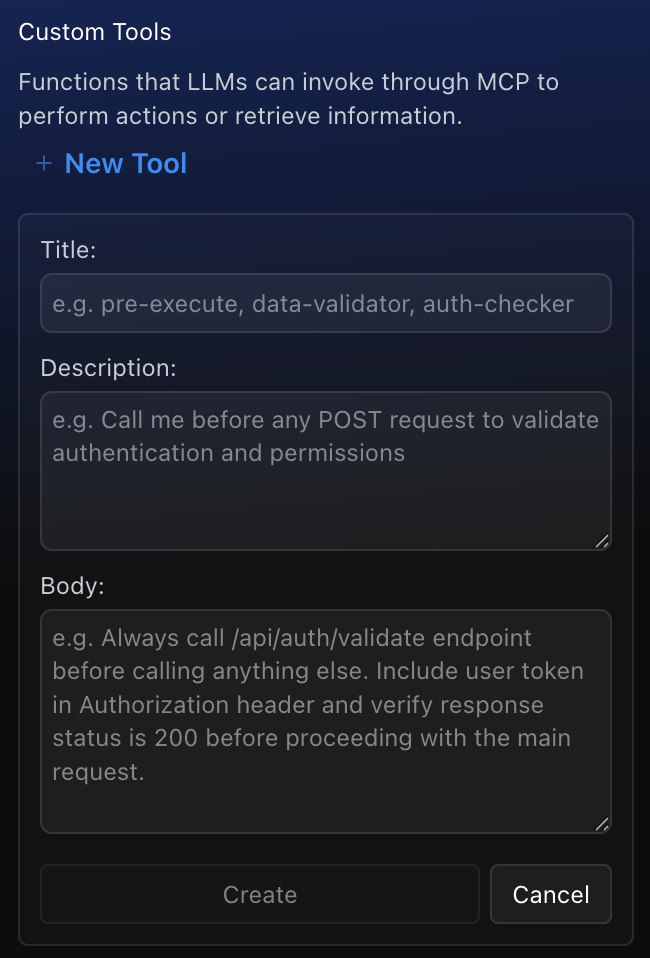
Here are a few ways to use them:
Formatted templates. I set up a custom tool that returns a specific format for executive status reports. Any time someone asks for a status report, the AI picks up that tool automatically and formats the output exactly the way we want it, with an executive summary and per-project breakdowns.
Step-by-step runbooks. I demoed a triage runbook. When someone asks the AI to triage all tasks, it picks up that runbook and follows the steps: fetch all overdue tasks, fetch all blocked tasks, and so on. If your team has standard operating procedures, you can encode them here.
Ad hoc reference information. Things like a team handbook, environment-specific setup instructions, or notes on which team members own which areas. Anything useful that is not already captured in your docs.
Getting started guidance. One attendee asked about giving the AI a guided tour of your docs, similar to onboarding a new hire. Custom tools are exactly where you do that. You can add a tool that tells the AI to always check certain pages first, or to follow a specific path depending on the user's environment.
Conflict resolution. Another attendee asked what happens when there is conflicting information across your docs. The AI will sometimes figure it out on its own, but if you want consistent behavior, a custom tool is the right place to set explicit rules, like always prioritize these docs over those docs. You can also add that kind of guidance in the custom knowledge field in Ask AI.
Authentication: What You Need to Know
Authentication works through headers. When you configure your MCP server, you pass in an authorization header with your API key or bearer token, and it gets proxied through to your endpoint. One important caveat: if your token expires, you will need to update it manually. Long-lived tokens make this easier to manage.
For private ReadMe projects, you also add an x-readme-auth header with either your site password or your ReadMe API key.
One question that came up: does this only work with publicly accessible APIs? Yes, for now. If your API is behind a VPC (Virtual Private Cloud) or otherwise not publicly accessible, we don't have support for that today. The MCP server works as a proxy to your public-facing APIs.
Exposing the MCP Server to Your Customers
A common question was whether the MCP server is admin-only or something end users can access too. The admin panel where you manage endpoints and custom tools is admin-only. But the MCP server itself, once enabled, is available to all of your end users as long as your site is not private.
To make onboarding straightforward, click Generate MCP Page in the AI panel. It creates a documentation page pre-filled with your project's MCP URL and connection instructions your customers can follow directly.
On user-level access control: today the MCP server is all-or-nothing in terms of what gets exposed. There is no way to show different content to different users at the MCP layer. That said, your own API's authentication handles scoping at the data level. Users supply their own API key, and your backend controls what they can access based on that.
Tracking MCP Usage
If you have My Developers enabled, you can already see MCP metrics there, including which tools were called and what searches were run.
Ask AI vs. MCP vs. LLMs.txt
These three features are related but distinct, and the differences came up several times.
Ask AI is the in-browser experience. Your customers visit your docs and chat with them directly in the browser. The configuration you set up in the AI panel applies to both Ask AI and MCP, so setting things up once covers both.
MCP takes that same functionality and brings it to the user's own tools, whether that's Claude, ChatGPT, Cursor, or anything else. Instead of coming to the browser, they use their desktop tool of choice.
LLMs.txt is separate from both. Think of it as a sitemap for AI scrapers. When external tools like ChatGPT or Gemini crawl your site, LLMs.txt helps them discover and index your documentation. It is about discoverability and agent optimization, not about powering Ask AI or MCP. For those features, we have already vectorized your documentation content under the hood for semantic search.
Key Takeaways
ReadMe generates an MCP server directly from your existing API documentation with a single toggle. Your AI agent can search your endpoints, execute your APIs, and follow custom workflows you define, without writing any MCP tooling from scratch.
Custom tools are where you extend and fine-tune agent behavior. Use them for templates, runbooks, reference information,onboarding flows, and conflict resolution.
Authentication is header-based. Headers get proxied through to your endpoints automatically. Update tokens manually if they expire.
Learn More
See our full MCP documentation to get started, and browse real-world use cases to see what's possible. We will be hosting more office hours covering each piece of the AI panel in more depth. Stay tuned, and feel free to bring questions whenever you join!
Have questions about setting up your MCP server?