Everything to Build Great Docs
The Full Documentation Stack

Documentation
built for agents
built for agents
Try it out — enter a
URL
,
, or
Upload Files
, or
Drag and Drop
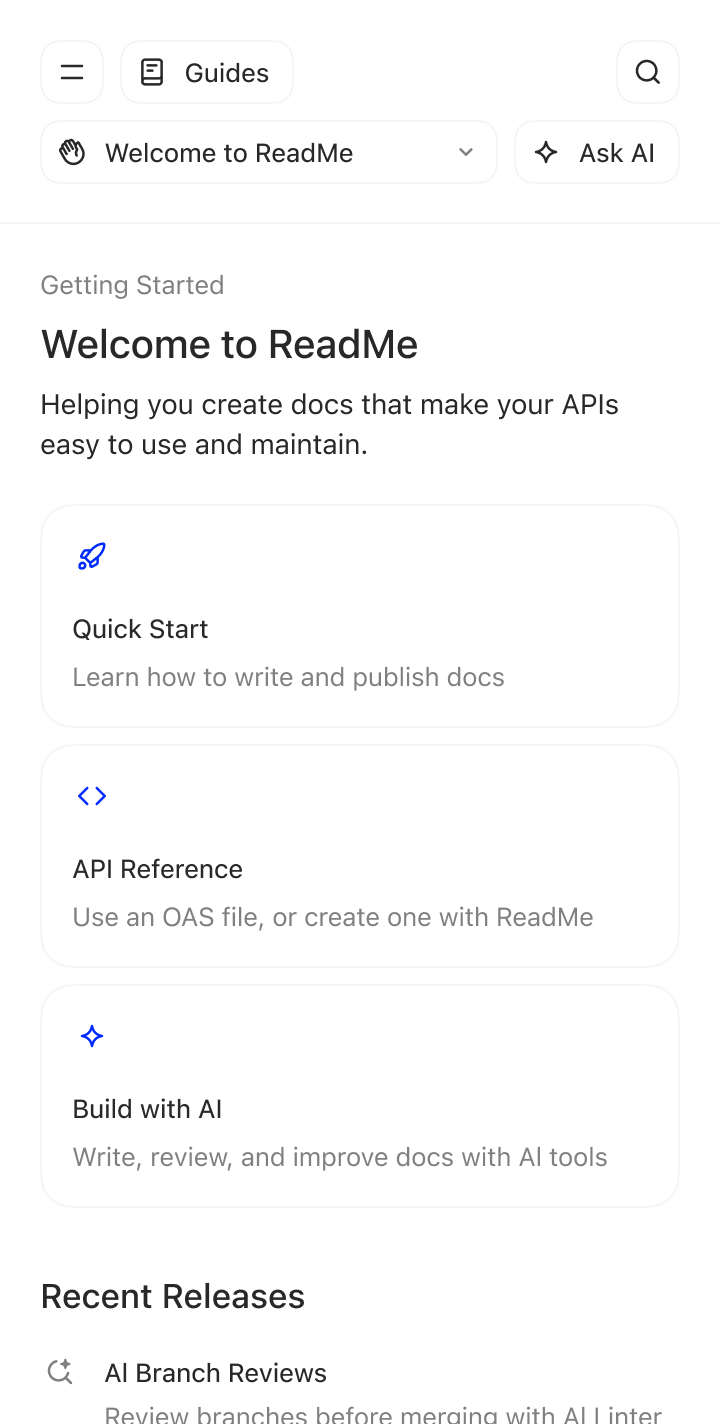
Hey there!
Helping you create docs that make your APIs easy to use and maintain.
What can I help you with?



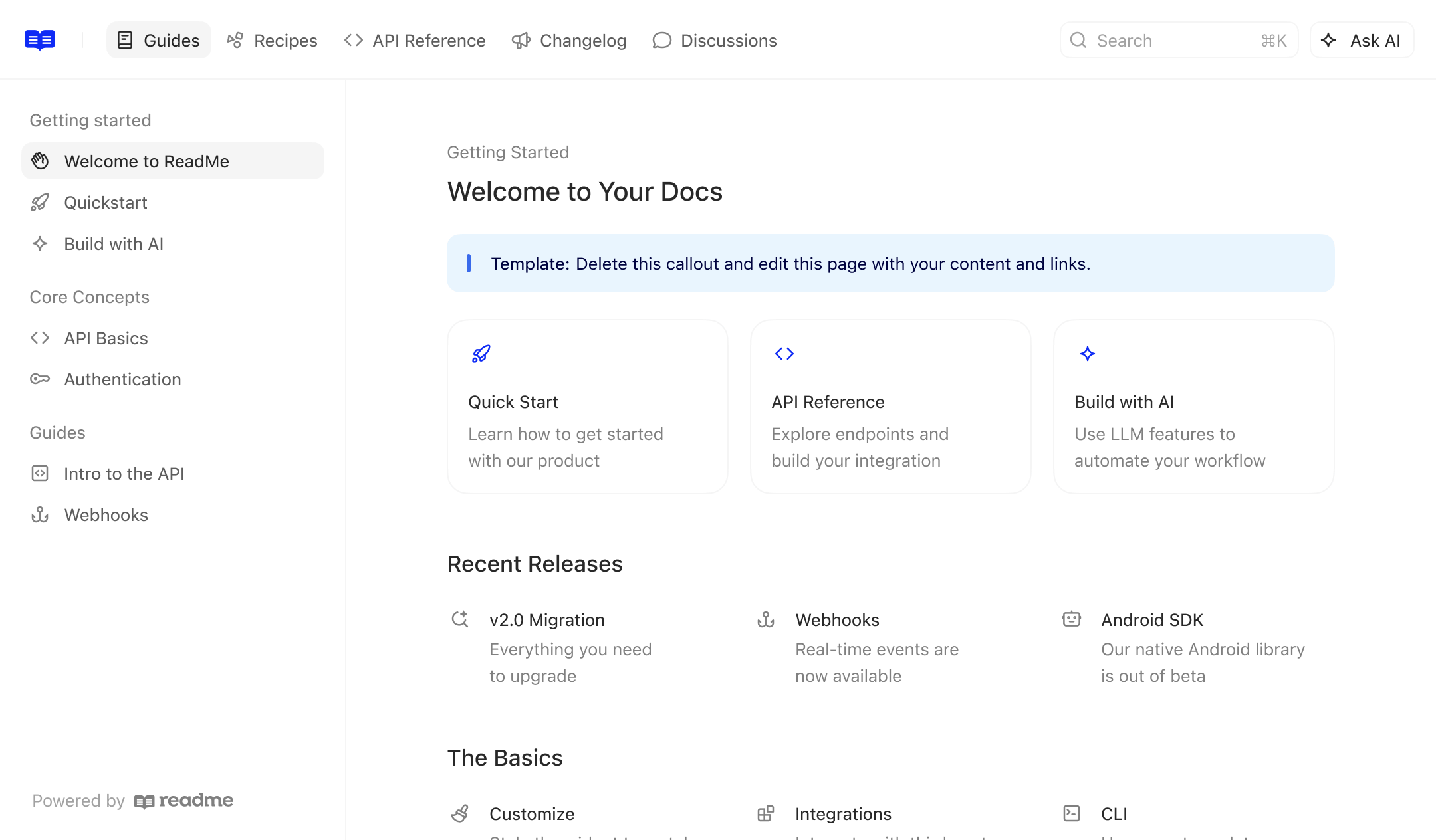

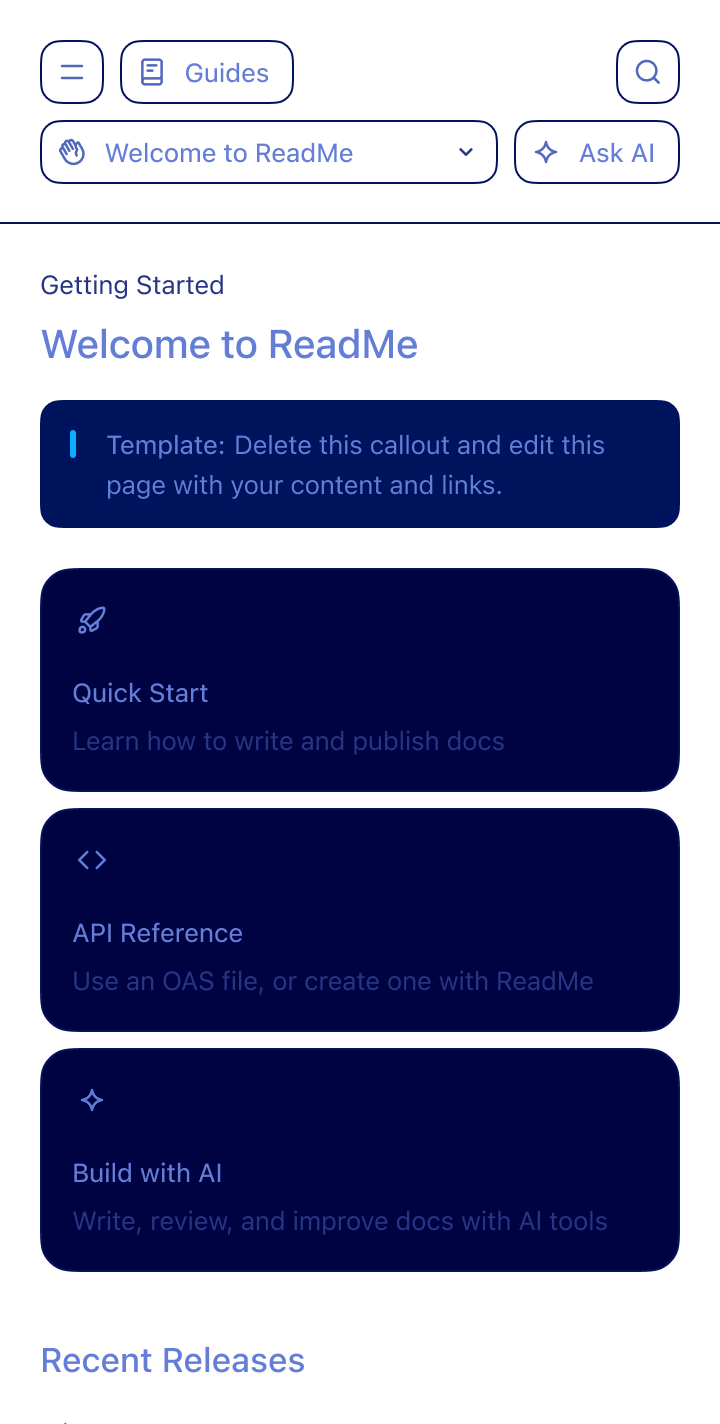
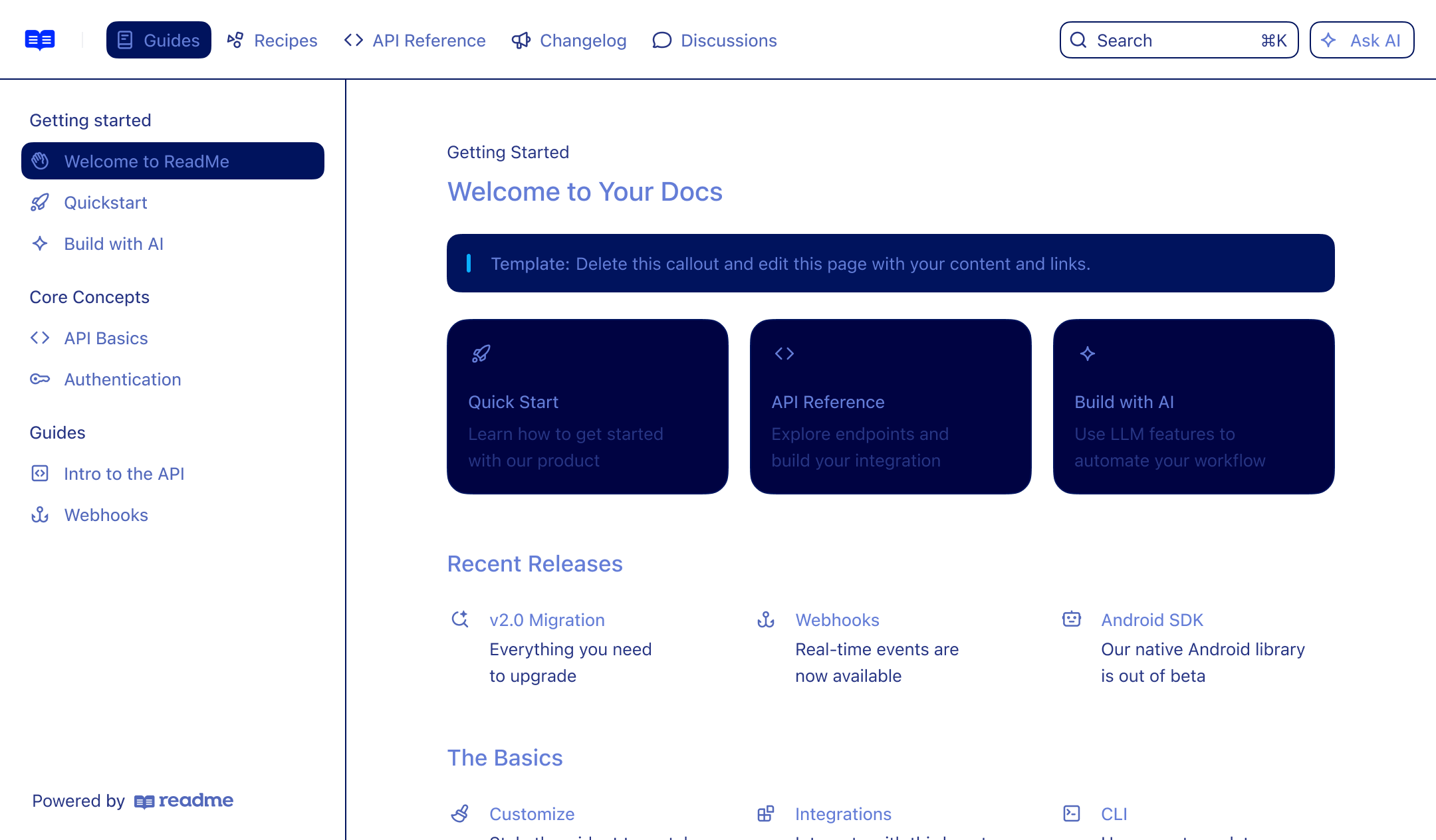
 Creating Docs

developers.yourcompany.com


View
Edit

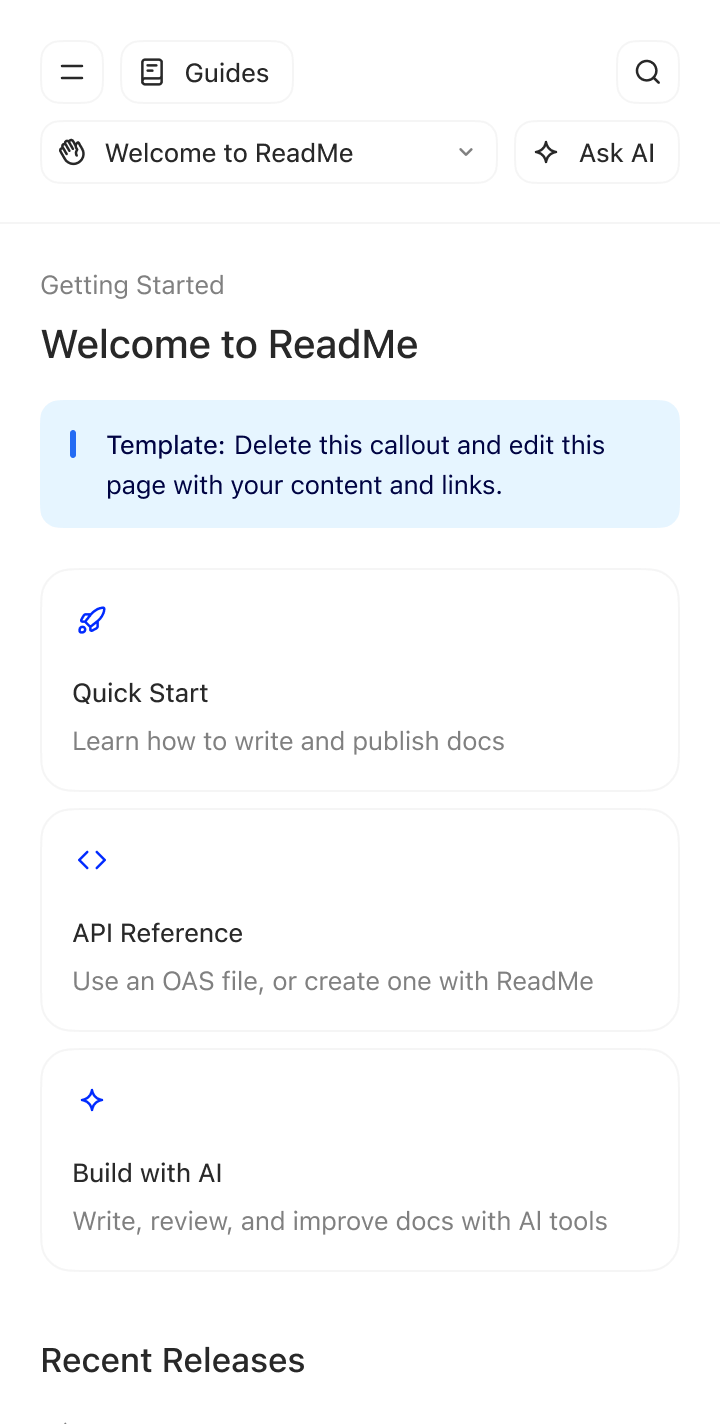
Getting Started
Welcome to your docs
Helping you create docs that make your APIs easy.
Type markdown or / to insert a block
Learn how to get started with our product
Explore endpoints and
build your integration
build your integration



request-and-owl.mdx
create-your-project.mdx


 Define custom rules for errors and warnings
 Automatically detects broken links by default
 Fix flagged issues instantly with the Agent
9a196b2

chore: auto-fix lint, prettier, and type errors

ReadMe AI Writer
Bot
Updated the setting-up-custom-domain documentation page based on this pull request.
6ca83cf
feat: introduce API rate limiting
ReadMe AI Writer
Bot
Updated the rate-limits documentation page based on this pull request.
 AI analyzes pull requests and drafts doc updates
 Changes land on a review branch, not live docs
 Silent when no updates are needed
Review
Started review·John Doe
Pending approval

Approve changes
Review
Started review·Jane Smith
Pending approval
Approve changes
Review
Started review·Jim Beam
Pending approval
Approve changes
 AI Linter catches errors before you merge
 Request teammate approval on any branch
 Enterprise teams can enforce review requirements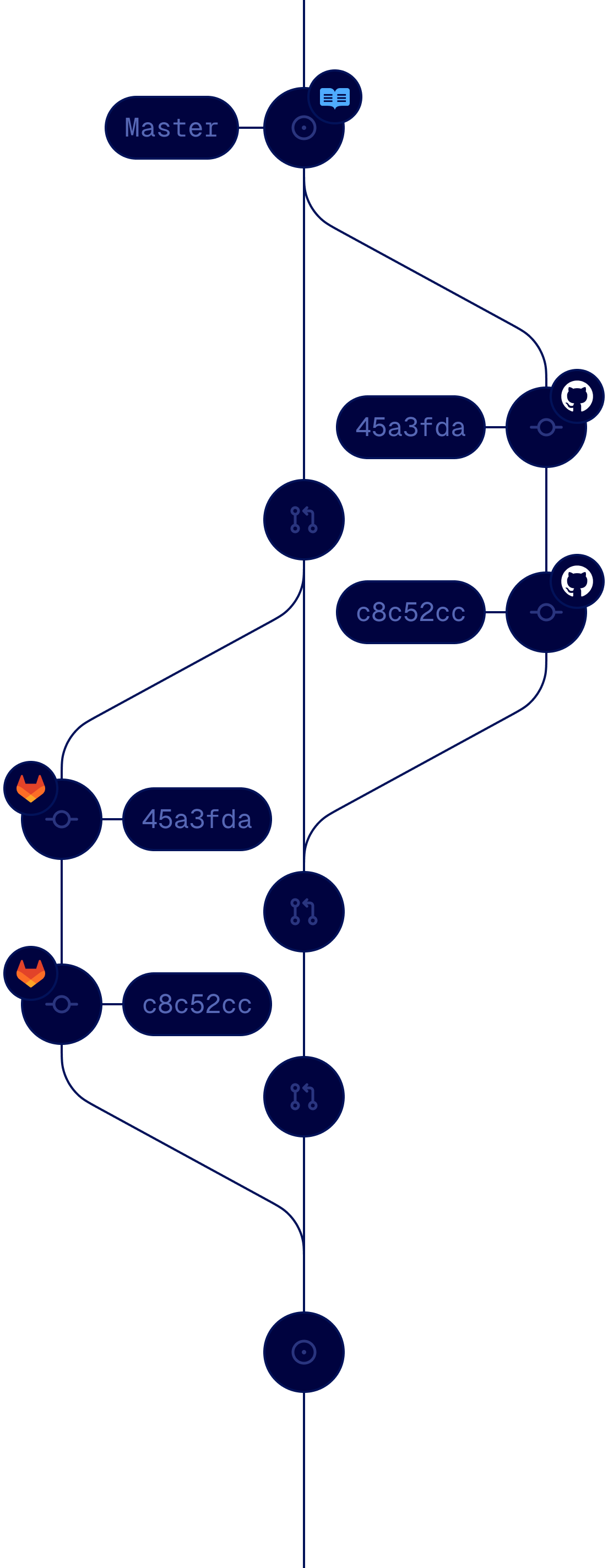
 Branches let you save changes without publishing
 Review and merge edits across multiple pages
 Teammates can view, edit, merge, and delete

Reusable
Sign up for an account
Create a new project
Generate API key

<Checklist/>

<Cards/>
 Add interactivity beyond plain text.
 Edit once, update everywhere.
 Customize components from our Marketplace

OAS File
Swagger
ReadMe
 Drag and drop files or import via URL
 Connect directly to GitHub or GitLab repositories
 Automate syncing with CLI or API Sync
 Document endpoints without writing any code
 Define parameters, requests, and errors
 No OpenAPI specification needed to start
 Scale your docs globally
 Publish and manage multi-language docs
 Built-in localized navigation and search
 Create and manage pages with prompts
 Generate changelogs on every new release
 Build style guides from top-performing pages